Created page with "=== Installing Linux Debian === In this section will guide you through the installation of Debian 12 using Oracle VM VirtualBox. First, download the Debian 12 ISO image by visiting the official website of [https://www.debian.org/distrib/ Debian] and selecting the appropriate file. Next, install [https://www.oracle.com/it/virtualization/technologies/vm/downloads/virtualbox-downloads.html Oracle VM VirtualBox] from the following link (insert link) and follow the installati..."
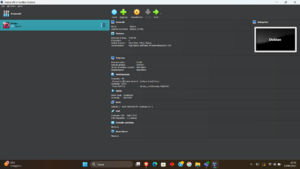
[[File:GUI vm2.png|thumb|301x301px|Gui of VM Box]]
In this section will guide you through the installation of Debian 12 using Oracle VM VirtualBox. First, download the Debian 12 ISO image by visiting the official website of [https://www.debian.org/distrib/ Debian] and selecting the appropriate file. Next, install [https://www.oracle.com/it/virtualization/technologies/vm/downloads/virtualbox-downloads.html Oracle VM VirtualBox] from the following link (insert link) and follow the installation instructions provided. Once the installation is complete, launch the software—you should see an interface similar to the one shown in the image beside this text.
[[File:GUI vm1.png|thumb|625x625px|Gui of VM Box]]
=== Installing VM-Box Oracle ===
[[File:Creazione vm1.png|thumb]]
In this section will guide you through the installation of Debian 12 using Oracle VM VirtualBox. First, download the Debian 12 ISO image by visiting the official website of [https://www.debian.org/distrib/ Debian] and selecting the appropriate file. Next, install [https://www.oracle.com/it/virtualization/technologies/vm/downloads/virtualbox-downloads.html Oracle VM VirtualBox] from the following link (insert link) and follow the installation instructions provided. Once the installation is complete, launch the software. You should see an interface similar to the one shown in the image beside this text.
=== Upload ISO file ===
Your next step is to upload the ISO file downloaded in the previous section. Press the '''''New''''' button and a pop up as showed on the left will appear. Select a name and on '''''ISO image''''' select the downloaded file. For the next steps:
# Update '''''User''''' and '''''Password'''''
# Allocate '''''ram''''' and '''''core number''''' based on your pc
# [[File:GUI vm1.png|thumb]]Allocate '''''at least 60-80 GB''''' of solid memory
After that you should see your new machine in the main window.
=== Installing Debian ===
Now it's time to launch your VM. During your first launch the VM will install debian and will ask you some info. The most important thing is to install debian as main OS and not as a partition. This will not delete Windows because you are installing it in a VM. At some point Debian will ask which Desktop you want. We advice to use KDE Desktop, because it's preatty
Revision as of 16:25, 13 June 2025
Gui of VM Box
Installing VM-Box Oracle
In this section will guide you through the installation of Debian 12 using Oracle VM VirtualBox. First, download the Debian 12 ISO image by visiting the official website of Debian and selecting the appropriate file. Next, install Oracle VM VirtualBox from the following link (insert link) and follow the installation instructions provided. Once the installation is complete, launch the software. You should see an interface similar to the one shown in the image beside this text.
Upload ISO file
Your next step is to upload the ISO file downloaded in the previous section. Press the New button and a pop up as showed on the left will appear. Select a name and on ISO image select the downloaded file. For the next steps:
Update User and Password
Allocate ram and core number based on your pc
Allocate at least 60-80 GB of solid memory
After that you should see your new machine in the main window.
Installing Debian
Now it's time to launch your VM. During your first launch the VM will install debian and will ask you some info. The most important thing is to install debian as main OS and not as a partition. This will not delete Windows because you are installing it in a VM. At some point Debian will ask which Desktop you want. We advice to use KDE Desktop, because it's preatty