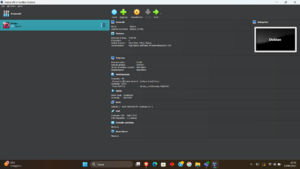
In this section will guide you through the installation of Debian 12 using Oracle VM VirtualBox. First, download the Debian 12 ISO image by visiting the official website of Debian and selecting the appropriate file. Next, install Oracle VM VirtualBox from the following link (insert link) and follow the installation instructions provided. Once the installation is complete, launch the software. You should see an interface similar to the one shown in the image beside this text.
Upload ISO file
Your next step is to upload the ISO file downloaded in the previous section. Press the New button and a pop up as showed on the left will appear. Select a name and on ISO image select the downloaded file. For the next steps:
Update User and Password
Allocate ram and core number based on your pc
Allocate at least 60-80 GB of solid memory
After that you should see your new machine in the main window.
Installing Debian
Now it's time to launch your virtual machine. During the initial startup, the VM will begin the Debian installation process and prompt you to enter some information , in particular save the Root password and your User name and password. The most important step is to install Debian as the primary operating system within the VM, not as a dual-boot partition. Don’t worry,this won't affect your Windows installation, as everything is contained within the virtual environment. At a certain point, Debian will ask you to choose a desktop environment. We recommend selecting the KDE desktop due to its visual and functional similarity to Windows.
Installing Debian as dual-boot
If you prefer not to use a virtual machine, you can install Debian as a dual-boot system on your PC, or you can remove Windows entirely to unlock the full potential of Debian.
The process is relatively straightforward. First, you’ll need a USB drive, which must be formatted with the Debian ISO image. A tool like balenaEtchercan be used for this purpose. Once the USB is ready, you’ll need to create a new partition on your hard drive. Keep in mind that Debian typically requires 20–25 GB after installation. We recommend allocating 100–150 GB of storage space (HDD or SSD) for optimal performance.
Next, insert the prepared USB drive, reboot your PC, and boot from the USB. To do this, press F12, F2, or the appropriate key for your system during startup to access the BIOS/boot menu and select the USB device.
Debian will then begin the installation process. This time, make sure to choose dual-boot installation, not "use entire disk" or "replace existing OS," as that would remove Windows. Select the new partition you created earlier for Debian. From this point onward, the installation steps are the same as described in the virtual machine section.